
Translating scanned documents into another language requires optical character recognition (OCR) to convert raster page images into editable text before language translation. In this comparison guide, we evaluate 6 tools based on layout preservation, table formatting, and multi-page handling, highlighting practical trade-offs for business workflows.
What Is a Scanned PDF, and Why Is It Difficult to Translate?
A scanned PDF is a document made from images of pages rather than text that can be directly selected and copied. This often happens when someone scans a printed contract, photographs a form, or saves paper records as a PDF.
(Try selecting a sentence in your PDF. If you cannot highlight individual words, the file is likely image-based and requires OCR before translation.)
A scanned document presents three distinct challenges:
- Text recognition: The software must identify characters from pixels, including small fonts, blurred text, and unusual formatting.
- Translation accuracy: The recognized text must be translated without altering names, dates, numbers, or technical terminology.
- Layout preservation: The translated text must fit back into the document without disrupting tables, columns, headings, and other visual elements.
This is why translating a scanned PDF is fundamentally different from translating a standard text-based PDF. OCR makes the content readable to software, but OCR alone does not translate the document or guarantee that its original formatting will be preserved.
How Does Scanned PDF Translation Work?
A typical scanned PDF translation workflow involves three stages:
- Optical Character Recognition (OCR): OCR detects text in page images and converts it into machine-readable text. Recognition quality heavily depends on image resolution, contrast, skew, fonts, and the language being recognized.
- Machine Translation (MT): The extracted text is translated into the target language. The translation engine must interpret context, terminology, abbreviations, and relationships between sentences.
- Layout Reconstruction: The translated text is placed back into a document structure. Depending on the tool, this may include preserving tables, columns, headings, images, and page organization.
A tool that handles all three stages in a single workflow significantly reduces manual work. However, complex layouts and extremely low-quality scans may still require a quick human review.
6 Best Tools to Translate Scanned PDFs in 2026
The tools below serve different needs. This comparison focuses on their workflows and practical use cases rather than claiming a controlled accuracy ranking. Results can vary by file, language pair, and scan quality.
1. Doctranslate.io — Best for an Integrated Scanned PDF Translation Workflow
Doctranslate.io combines document translation with native OCR processing for scanned PDFs, helping users translate complex documents without manually extracting and pasting text between separate tools. Instead of treating translation as a text-only task, the platform is engineered to retain document structure, including tables, headings, columns, and images.
Key features:
- Scanned PDF translation: Process image-based PDFs with AI OCR as part of the unified document translation workflow.
- Layout preservation: Retain the structure and visual organization of the original document.
- Multilingual support: Translate documents across 100+ languages.
- Multiple file formats: Work seamlessly with PDF, DOCX, PPTX, and XLSX files.
- Advanced options: Configure language, tone, domain terminology, and bilingual (side-by-side) output where supported.
Advantages: Useful when you need more than a plain-text translation. Combining OCR and translation in one workflow drastically reduces manual copying, reformatting, and switching between applications. It is particularly valuable for business reports, contracts, technical manuals, and formatted forms.
Limitations to consider: OCR quality still depends on the source scan. Dense tables, handwriting, unusual fonts, and poor lighting can introduce recognition errors. Because translated text often expands or contracts, highly sensitive documents should be reviewed before final use.
- Best for: Individuals and teams who regularly translate scanned PDFs and want to eliminate manual document rework.
2. Google Drive and Google Docs — Best for Basic Text Extraction
Google Drive can convert supported scanned PDFs and image files into editable text through Google Docs. This is useful when you need to read the contents of a simple document without retyping everything.
Key features:
- Built-in OCR through Google Docs.
- A familiar, browser-based workflow.
- Convenient access to editable extracted text.
Advantages: A highly practical and free option for short, straightforward documents when the primary goal is simply understanding the text.
Limitations to consider: Google explicitly warns that original formatting may not transfer during conversion. Tables, columns, page layouts, and visual elements often require substantial manual cleanup.
- Best for: Short memos, simple letters, and scanned pages where visual formatting is not important.
3. Microsoft Word — Best for Office-Based Editing
Microsoft Word can open supported PDF files and use its PDF Reflow engine to convert them into editable Word documents.
Key features:
- Editable Word output for supported PDFs.
- Familiar tools for correcting and formatting text.
- Integration with existing Microsoft 365 workflows.
Advantages: Word is convenient when the final deliverable needs to be an editable document, allowing you to correct text and refine formatting in a familiar application.
Limitations to consider: PDF conversion often changes line breaks, page breaks, tables, and text positioning. A purely image-based scanned PDF may struggle to convert cleanly without a dedicated OCR step first.
- Best for: Office users translating straightforward business documents who are comfortable manually correcting the converted file.
4. Adobe Acrobat Pro — Best for OCR Review and PDF Editing
Adobe Acrobat provides robust OCR functionality for converting scanned pages into searchable text, allowing users to review and correct text recognition errors at a granular level.
Key features:
- High-fidelity OCR for scanned PDF documents.
- Creates searchable, selectable text layers.
- Tools for reviewing uncertain recognized words.
Advantages: Acrobat is unmatched for documents where text recognition needs careful inspection. Users can review the recognized text against the original scan and correct errors before moving to the translation phase.
Limitations to consider: OCR and translation are entirely separate tasks here. You must export the recognized content, translate it with another tool, and manually restore the translated text to the original layout.
- Best for: Users who need to inspect OCR results, correct recognition errors, or prepare scanned PDFs for an external translation workflow.
5. ABBYY FineReader PDF — Best for Detailed OCR Correction
ABBYY FineReader PDF is an enterprise-grade OCR and document conversion tool designed to turn challenging scans into editable, searchable content.
Key features:
- Advanced OCR for degraded scanned documents.
- Granular tools for inspecting and correcting recognized text.
- Document comparison and editing features.
Advantages: FineReader is the go-to solution when you need absolute control over the OCR process. It excels at preparing highly complex, low-contrast documents for digitization and translation.
Limitations to consider: Like Adobe, ABBYY's OCR preparation does not automatically complete the translation workflow. You will need a separate translation service and additional manual work to reconstruct the translated document.
- Best for: Users handling complex scans, historical document digitization, and workflows requiring detailed OCR review.
6. DeepL — Best for Supported Document Translation Workflows
DeepL is a premium machine translation service renowned for its natural phrasing. While primarily known for text, it offers document translation capabilities for supported formats.
Key features:
- High-quality machine translation across supported language pairs.
- Applications for desktop and mobile use.
- OCR-related workflows for scanned documents in supported native apps.
Advantages: DeepL is excellent when translation fluency is your top priority. Its desktop and mobile apps provide workflows to translate scanned images or documents on the fly.
Limitations to consider: DeepL notes that PDF translation can experience a higher error rate due to OCR limitations. Custom fonts, dense layouts, or large image-based PDFs may struggle to process correctly compared to standard digital PDFs.
- Best for: Users who prioritize linguistic quality and work primarily with clean digital documents or simple scans via supported apps.
Scanned PDF Translation Tools Compared
| Tool | OCR Workflow | Translation | Layout and Editing | Best Use Case |
|---|---|---|---|---|
| Doctranslate.io | Integrated | Built-in | Designed to preserve document structure | End-to-end scanned PDF translation |
| Google Drive / Docs | Built-in text extraction | Separate or via Google tools | Formatting may not transfer | Simple text extraction |
| Microsoft Word | Depends on file & workflow | Available for supported content | Editable output; conversion may alter layout | Office-based editing |
| Adobe Acrobat Pro | Built-in OCR & correction | Separate workflow needed | PDF editing and OCR review | Preparing and checking scans |
| ABBYY FineReader | Advanced OCR workflow | Separate workflow needed | Editable document conversion | Detailed OCR correction |
| DeepL | Available in supported apps | Built-in | Depends on format and scan quality | Translation-focused workflows |
(Note: This is a feature and workflow comparison, not a controlled performance benchmark. Confirm current plan limits, supported formats, language pairs, and privacy terms before choosing a tool.)
How to Translate a Scanned PDF with Doctranslate.io
If you want to translate a scanned PDF without manually extracting and reformatting its contents, you can use Doctranslate.io's integrated workflow:
Step 1: Upload your scanned PDF Navigate to the Doctranslate Document Translation Interface and upload your file. The system supports .docx, .pdf, .pptx, .xlsx, and .txt formats (up to 3 files and 300 MB total). Ensure the document is readable and correctly oriented. If you have a choice, always use the clearest available scan.
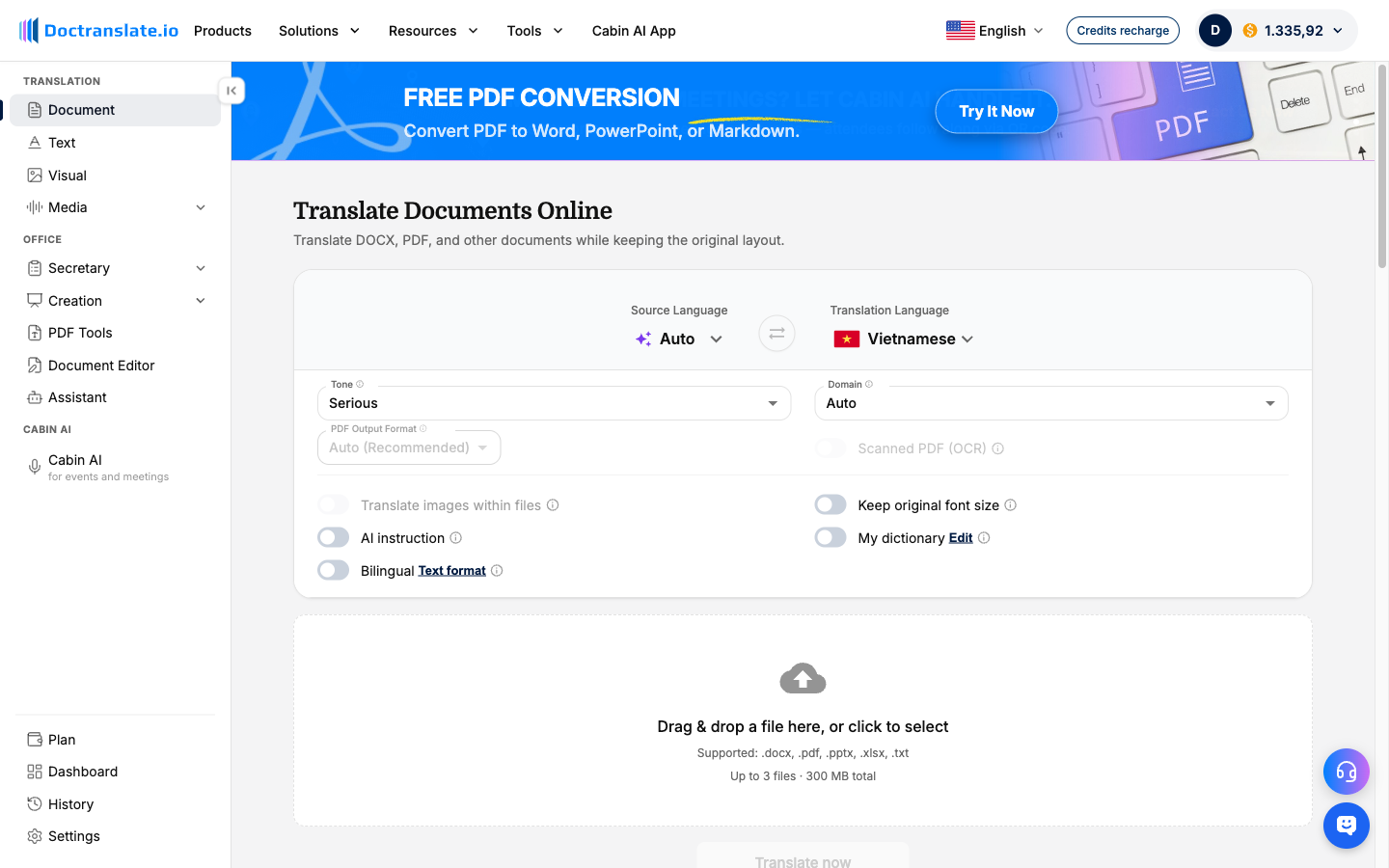
Step 2: Select the target language and processing options Choose your target language. For scanned files, make sure the "Scanned PDF (OCR)" option is enabled. This commands the system to actively recognize text embedded in page images before applying translation. You can also configure tone, domain, or bilingual output options.
Step 3: Translate and download the result Click Translate and allow the cloud pipeline to process the file. Download the resulting document in your preferred output format.
Step 4: Check the translated document While the platform is designed to retain the original structure, always review the output—especially for:
- Names, dates, decimals, and currency values.
- Table headers, rows, and narrow column alignment.
- Text embedded in images, charts, or stamps.
For legal, financial, or medical documents, always have a qualified reviewer verify the translation.
5 Tips for Improving Scanned PDF Translation Accuracy
Even the most capable OCR system can struggle with a poor-quality source file. Follow these steps to maximize results:
- Start with a clear scan: Use sharp images with high resolution, good contrast, and even lighting. Avoid cutting off page edges.
- Correct page orientation: Rotate pages so the text reads right-side up. Straighten tilted or skewed scans before uploading.
- Specify the source language: If the tool allows it, manually select the original language rather than relying on auto-detect. This significantly reduces character recognition mistakes.
- Inspect numbers and terminology: OCR errors frequently affect decimals, dates, and abbreviations. Double-check these details even if the surrounding text reads perfectly.
- Review formatting after translation: Translated phrases often expand (e.g., English to German). Check narrow columns and text boxes to ensure no content overlaps or gets cut off.
Frequently Asked Questions (FAQ)
What is the best way to translate a scanned PDF without losing formatting? Use a document translation tool that combines OCR, machine translation, and layout reconstruction natively. Platforms like Doctranslate.io are specifically designed for this workflow, helping preserve tables, columns, headings, and images without manual reassembly.
Can I translate a scanned PDF for free? Some tools offer free basic OCR (like Google Drive) or limited translation tiers. However, fully preserving the layout of a scanned PDF requires heavy computational processing, meaning advanced document translation platforms typically operate on metered or credit-based usage for scanned files.
Why can't I select text in my scanned PDF? Your PDF likely contains raster page images instead of a searchable text layer. OCR software is required to "read" those images and convert the visible text into machine-readable content that you can highlight, copy, or translate.
Does OCR translate a scanned PDF automatically? No. OCR only recognizes and extracts text from images. Translation is a separate process that converts that text into another language. A complete scanned PDF workflow requires both technologies working together.
Can I translate a scanned PDF into an editable Word document? Yes, provided your chosen tool supports both OCR processing and .docx output. Always review tables and page breaks after conversion, as structural elements can shift during the export process.
Is DeepL suitable for scanned PDF translation? DeepL can translate scanned documents through its supported desktop and mobile workflows. However, for highly complex or multi-page image-only PDFs, you may experience higher error rates compared to processing clean digital documents.
How can I translate a scanned PDF securely? Choose a service with a transparent privacy policy that outlines how files are encrypted (SSL/TLS), processed, and deleted. For confidential corporate documents, ensure the provider does not use your uploaded files to train public AI models.
Why does translating a scanned PDF cost more than translating a digital PDF? Digital PDFs already contain accessible text, requiring very little computational power to read. Scanned PDFs require compute-heavy AI OCR algorithms to parse image layers, render characters, and rebuild document geometry before translation can even begin.
Translate Scanned PDFs Without the Extra Manual Work
Translating a scanned PDF involves much more than converting words from one language to another. The tool must recognize the text accurately, translate it in context, and retain a highly usable document structure.
For simple, single-page scans, a basic OCR extraction workflow may be enough. But for business documents loaded with tables, multiple columns, and complex formatting, an integrated document translation workflow is essential to reduce manual extraction and redesign.
Need to translate a scanned PDF while keeping its layout? Try Doctranslate Document Translation to process scanned and digital PDFs seamlessly in one unified workflow.




Discussion
No comments yet