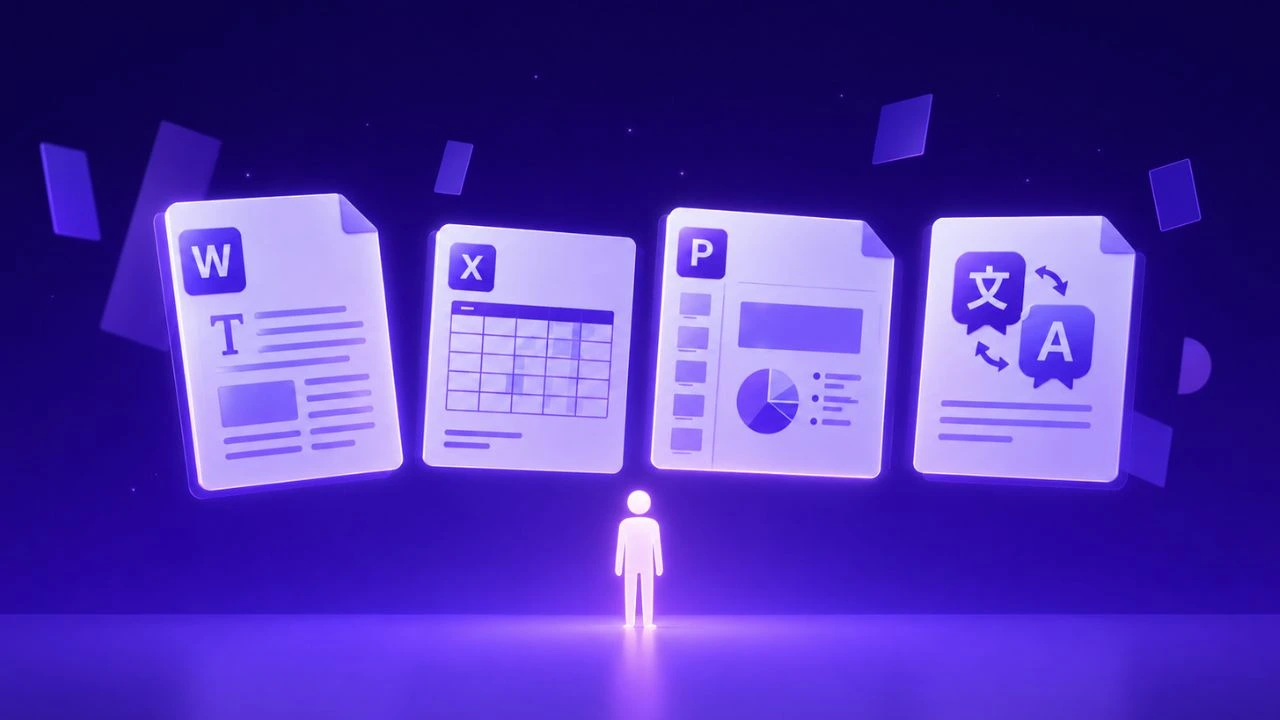
Translating a Word document online takes under two minutes. Which method you use determines whether the result looks professional or needs an hour of cleanup.

Quick answer: For simple documents you won't share, Word's built-in translator or Google Translate works fine. For anything you'll send to a client, submit to an authority, or publish — use a dedicated tool that processes the .docx XML structure directly.

Why Word Documents Are Easier to Translate Than PDFs — But Still Break

A .docx file is a ZIP archive containing XML files. The text, styles, tables, and formatting are stored as structured data — not as fixed visual coordinates the way a PDF does. A good translation tool can read this XML directly, replace only the text content, and leave styles, paragraph formatting, and table structures untouched.

In practice, three things still cause formatting problems:

Text expansion. Translated text is often longer than the original — German and Vietnamese run 20–40% longer than English equivalents. In a table cell or text box with a fixed width, this pushes content outside its boundaries.

Embedded images with text. Images inside a Word document are not readable as text. A translation tool without OCR will skip any text inside charts, diagrams, or scanned images entirely.

Complex styles. Custom fonts, tracked changes, footnotes, and layered styles are handled differently by each tool. Some strip them out; others break the style linkages.

Method 1: Microsoft Word Built-In Translator

Word has a built-in translation feature under the Review tab, powered by Microsoft Translator . No uploads, no third-party tools.

Step by step:

  1. Open your Word document
  2. Go to ReviewTranslate in the toolbar
  3. Select Translate Document (full file) or Translate Selection (highlighted text)
  4. Set source and target language
  5. Click Translate — Word opens the translated version in a new document window
  6. Save the new document

What works: Fast, free, no upload required. Supports 70+ languages . Basic formatting (bullet points, tables, paragraph spacing) is mostly preserved.

What doesn't: Translation quality is bounded by Microsoft Translator's engine, which is solid but less nuanced than DeepL for European pairs on complex writing. Complex styles, footnotes, and tracked changes produce inconsistent output. Text in images is not translated.

Best for: Personal reads of documents you receive. Not suitable for output you'll share externally.

Method 2: Google Translate — Document Upload

Google Translate supports direct .docx upload with no account required.

Step by step:

  1. Go to Google Translate and click the Documents tab
  2. Upload your .docx file (max 10MB)
  3. Select source and target language
  4. Click Translate
  5. Click Download translation to save the translated .docx

What works: Completely free. 249 languages supported — widest coverage of any tool. Instant results.

What doesn't: Layout preservation is unreliable on anything more complex than plain text. Tables can lose alignment. Custom fonts are replaced with defaults. Text in images is not translated.

Best for: Quick personal reads, rough drafts. Not for documents you'll share.

Method 3: Google Docs Translate

If your team works in Google Drive, Google Docs has a built-in translation feature that creates a translated copy of your document.

Step by step:

  1. Upload your .docx to Google Drive
  2. Right-click → Open withGoogle Docs
  3. Go to ToolsTranslate document
  4. Enter a name for the translated copy and select target language
  5. Click Translate
  6. To save as Word: FileDownloadMicrosoft Word (.docx)

What works: Free. Keeps the document inside your Google workspace for collaborative editing.

What doesn't: Formatting shifts more than other methods — fonts, spacing, and layout elements don't survive the conversion cleanly. Translation quality is the same as Google Translate.

Best for: Teams who need to collaboratively edit a translated document inside Google Docs.

Method 4: Dedicated AI Translator — Best for Professional Output

For documents you'll share, submit, or publish, a dedicated AI document translator processes the .docx at the XML level — reading paragraph styles, table structures, and inline formatting directly, then replacing only the text.

How to translate a Word document with Doctranslate.io :

  1. Go to doctranslate.io/translation/document
  2. Upload your .docx file
  3. Select source and target language from 100+ supported pairs
  4. Click Translate
  5. Download the translated .docx with formatting intact

What works: Formatting preservation is strong — tables, headings, paragraph styles, and inline formatting stay in place. For documents with embedded images containing text, OCR runs automatically. Supports PDF, DOCX, PPTX, and XLSX.

What doesn't: Paid tool — starts at $19.99/month after a free trial. For one-off personal reads, free tools are a better fit.

Best for: Contracts, reports, manuals, and any document you'll share professionally.

Which Method to Use

Your situationUse this method
Quick personal read, simple layoutGoogle Translate document upload
Working inside Microsoft 365 alreadyWord built-in translator
Need to collaborate in Google Docs after translationGoogle Docs translate
Document has tables, columns, or complex formattingDoctranslate.io or DeepL
European language pair, clean simple documentDeepL
Document contains images with textDoctranslate.io (auto OCR)
Translating for a client, submission, or publicationDedicated tool

Common Problems and Fixes

Tables are misaligned after translation. PDF tables with merged cells confuse column detection. Fix: open the import in Power Query (Transform Data), manually promote headers, and split or merge columns as needed.

Fonts changed after translation. Google Translate replaces custom fonts with defaults. Fix: use a dedicated DOCX translator that reads and preserves embedded font references, or re-apply fonts after downloading.

Images with text weren't translated. Images are not text — most translators skip them. Fix: use a tool with built-in OCR, or extract, translate, and re-insert manually.

Tracked changes caused issues. Most translation tools work on the accepted/final version. Fix: before uploading, accept all tracked changes (ReviewAccept All) and delete comments.

The Cost of Not Automating

Office workers spend approximately 10% of their work time on manual data entry , which includes manual copy-paste translation workflows. Neural machine translation reduces post-editing time by up to 80% compared to manual translation — but review remains necessary for anything high-stakes.

Frequently Asked Questions

Can I translate a Word document online for free? Yes. Microsoft Word's built-in translator is free. Google Translate's document tab is free for .docx files up to 10MB. Most dedicated tools offer free trials.

Does translating a Word document change the formatting? It depends on the method. Word's built-in translator and Google Translate preserve basic formatting but can break complex styles. Dedicated tools that process the .docx at the XML level preserve formatting more reliably.

How do I translate a Word document and keep the original layout? Use a tool that reads the .docx XML structure directly. Avoid copy-pasting text into a chat interface — that strips all formatting entirely.

Can I translate a Word document with images? If the images contain text (charts, diagrams, scanned content), you need a tool with OCR. Most free tools — including Google Translate and Word's built-in translator — don't translate text inside images.

How long does it take to translate a Word document online? For most tools, a 10-page Word document translates in under 60 seconds. Very large documents (100+ pages) may take 1–3 minutes.

What to Do

For occasional personal use with simple documents, Google Translate or Word's built-in translator covers the need at no cost.

For documents you'll share or submit, test a dedicated tool on your actual document first. The difference in output quality between a free tool and a purpose-built DOCX translator is immediately visible on any document with tables or custom formatting.